
Use your tenant share link to check each room, add amendments, upload your own photos, and sign the inspection when you are happy with it. This helps make sure your comments are included before the report is treated as signed.
Step by step
- Open the tenant share link you were sent
The link opens your inspection review. You may be asked to enter or confirm your: - name - email - phone number
You need to complete your details before you can sign the inspection.
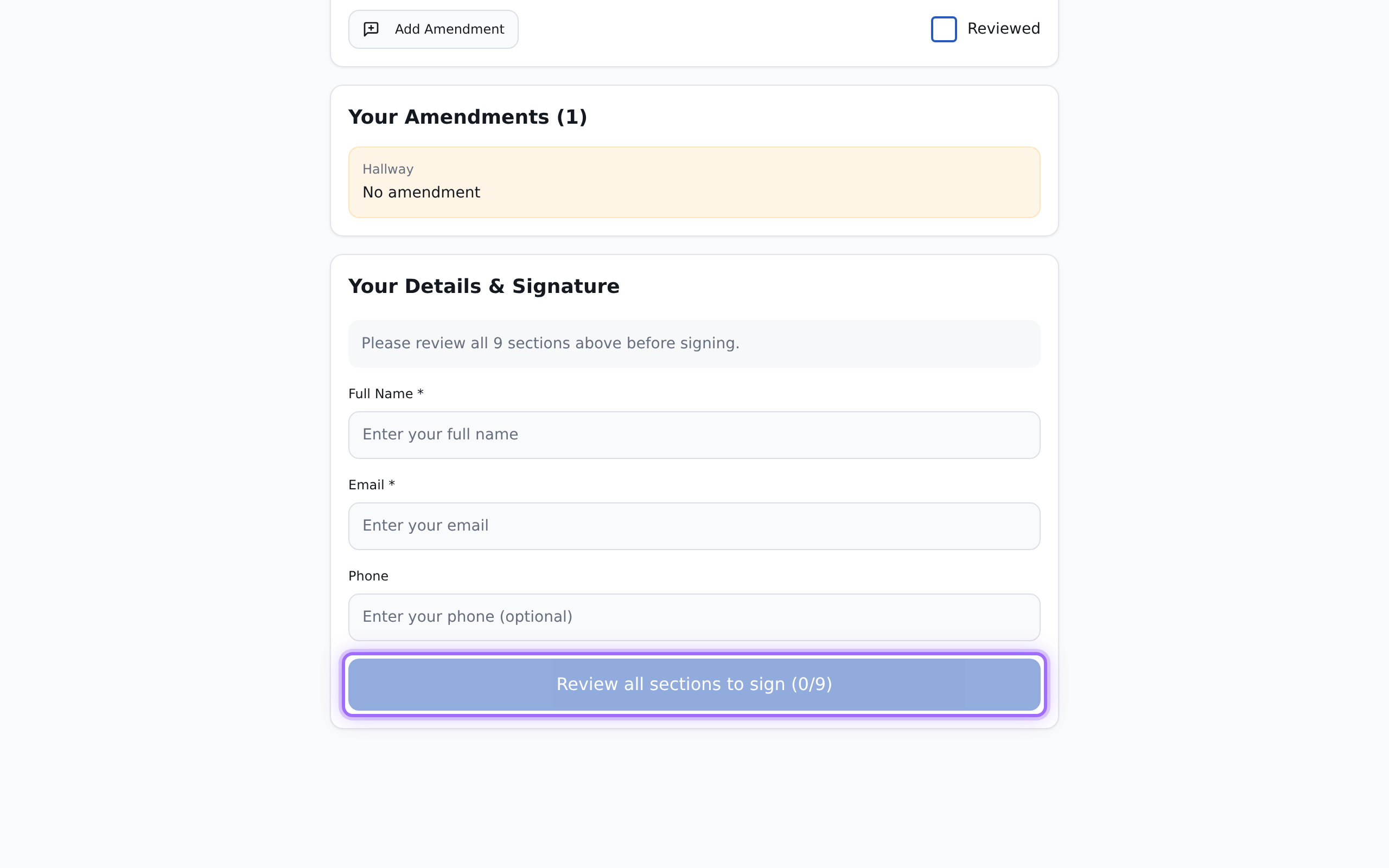
- Review each section of the inspection
Go through the inspection section by section. The review includes: - each room - photos already added to the inspection - notes for each section
As you review a section, use Reviewed to mark it as checked. The page shows your progress as X of Y sections reviewed.
> You need to mark all sections as Reviewed before you can sign. - Add an amendment where something needs correcting
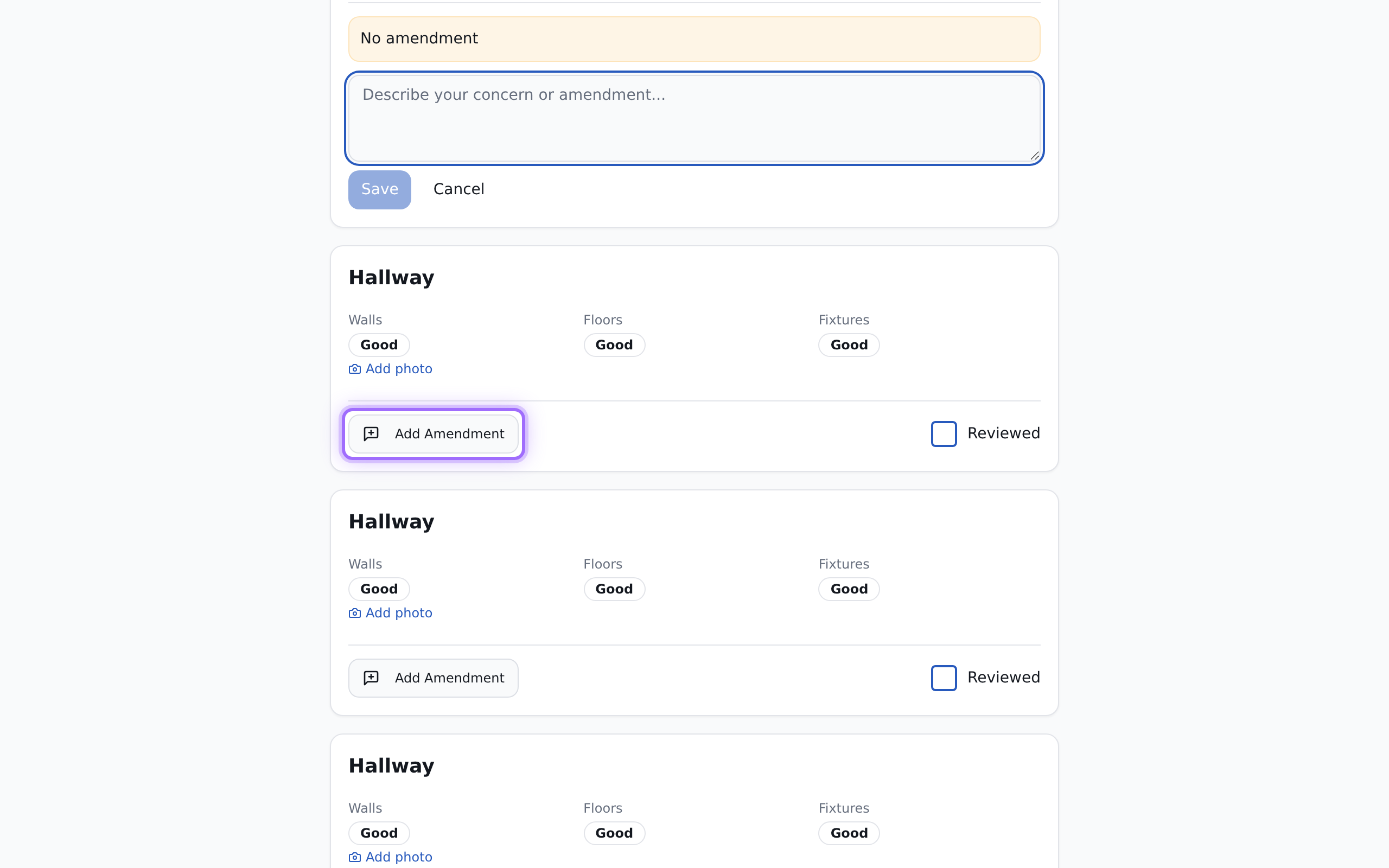
If you want to comment on a room or another section: - open that section - click Add Amendment - enter your comment in Describe your concern or amendment... - click Save
Your amendment is then shown in that section.
- Upload your own photos if you need to support an amendment
In the relevant room section, use the photo upload control to add your own photo. After the upload finishes, your photo is added to that room so it can be reviewed alongside the rest of the inspection.
- Sign the inspection
When you have reviewed every section, added any amendments, and entered your details, use Sign to sign the inspection.
Signing means you are submitting your review of the inspection with your tenant details and signature. If your details are incomplete, you will not be able to sign.
- Download the PDF if it is available
After signing, you may see Download PDF. Use this to save a copy of the inspection report.


After signing
Once signed, the inspection is recorded as signed and the landlord or agent can view the signed copy along with any amendments you submitted.
If you need a change after signing, contact the landlord or letting agent who sent you the link. No tenant option to reopen the inspection is shown in the review page.
For the owner or agent side of this process, see Run an inspection and update rooms.
Good to know
- You can only sign an inspection that has already been prepared and shared with you by the landlord or agent.
- If your link does not open the inspection, or you need help with the contents of the report, contact the landlord or letting agent who sent it.