
Use this when you want to send an inspection to a tenant so they can review it from a secure link, add amendments, and sign it without needing to sign in.
If you need the tenant steps, send them to the tenant-facing guide instead of walking them through your own screen: Run an inspection and update rooms
Step by step
- Find the inspection you want to share.
Start from your main inspection list or open the property and then open the inspection you want to send. If you need help locating an older report first, see Find and filter past inspections.
- Open the inspection.
On the inspection detail screen, look for the Send to tenant section.
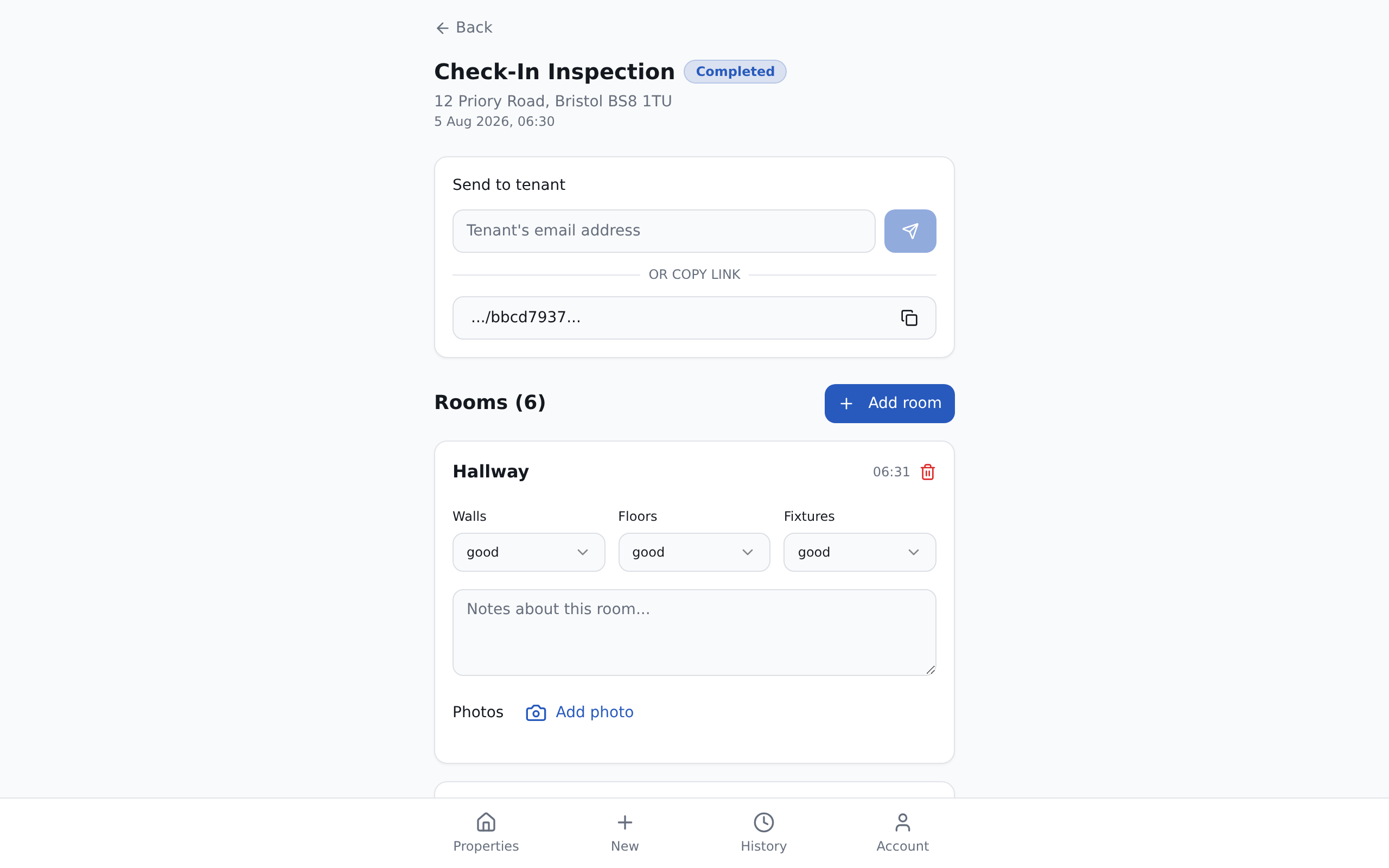
- Enter the tenant’s email address if you want Inspectifi to send the link for you.
Use the email field with the placeholder Tenant's email address, then use the send button in that same section.
- Or copy the tenant link and send it yourself.
Use the copy link button in the Send to tenant section. Inspectifi copies the secure review link to your clipboard, so you can paste it into your own email or message.

- If your inspection uses a tenant-guided flow, follow the share option shown on screen.
Some inspections are marked Tenant-guided. In that case, the tenant review experience may differ. Use the sharing option available on that inspection.
What the tenant receives
The tenant opens a secure review link and does not need to sign in.
From there, they can review the inspection, add amendments, upload photos, and sign if signing is available for that inspection. Keep tenant instructions separate by sharing the relevant tenant article with them.
After the tenant signs
Once the tenant has signed, the inspection status changes from Completed to Awaiting Your Signature.
When that happens, the inspection detail page can show the tenant’s signing details and any tenant amendments so you can review them before taking your next step.
Troubleshooting
If the tenant says they have not received the email:
- ask them to check spam or junk
- copy the link from the inspection and send it yourself
- confirm you are sharing the correct inspection
Good to know
- This article only covers sharing from the inspection detail screen. No dashboard share control was verified in the source provided.
- The source provided does not show a resend or revoke option, so this article does not include those steps.
- The source provided also does not confirm exact role restrictions for sharing. If you cannot access the inspection or its sharing controls, check with the person who manages your organisation access.