
Use Account to invite team members, remove pending invites, manage your plan, buy report credits, review payments, create inspection templates, and sign out.
Step by step

- Open Account.
- To invite someone to your organisation, open the invite dialog, enter their email address, choose their role, and send the invite.
- New invites use the person's email address and the selected role.
- If the invite is sent successfully, you'll see Invite sent.
- To remove a pending invite, delete it from the invites list on the same page.
- To manage a paid subscription, go to Plan & Billing and select Manage.
- Manage is only shown when your organisation already has a subscription that can be managed.
- If your organisation is on PAYG, use the upgrade buttons in Plan & Billing to move to Landlord or Pro.
- These upgrade options are shown when your current plan is PAYG.
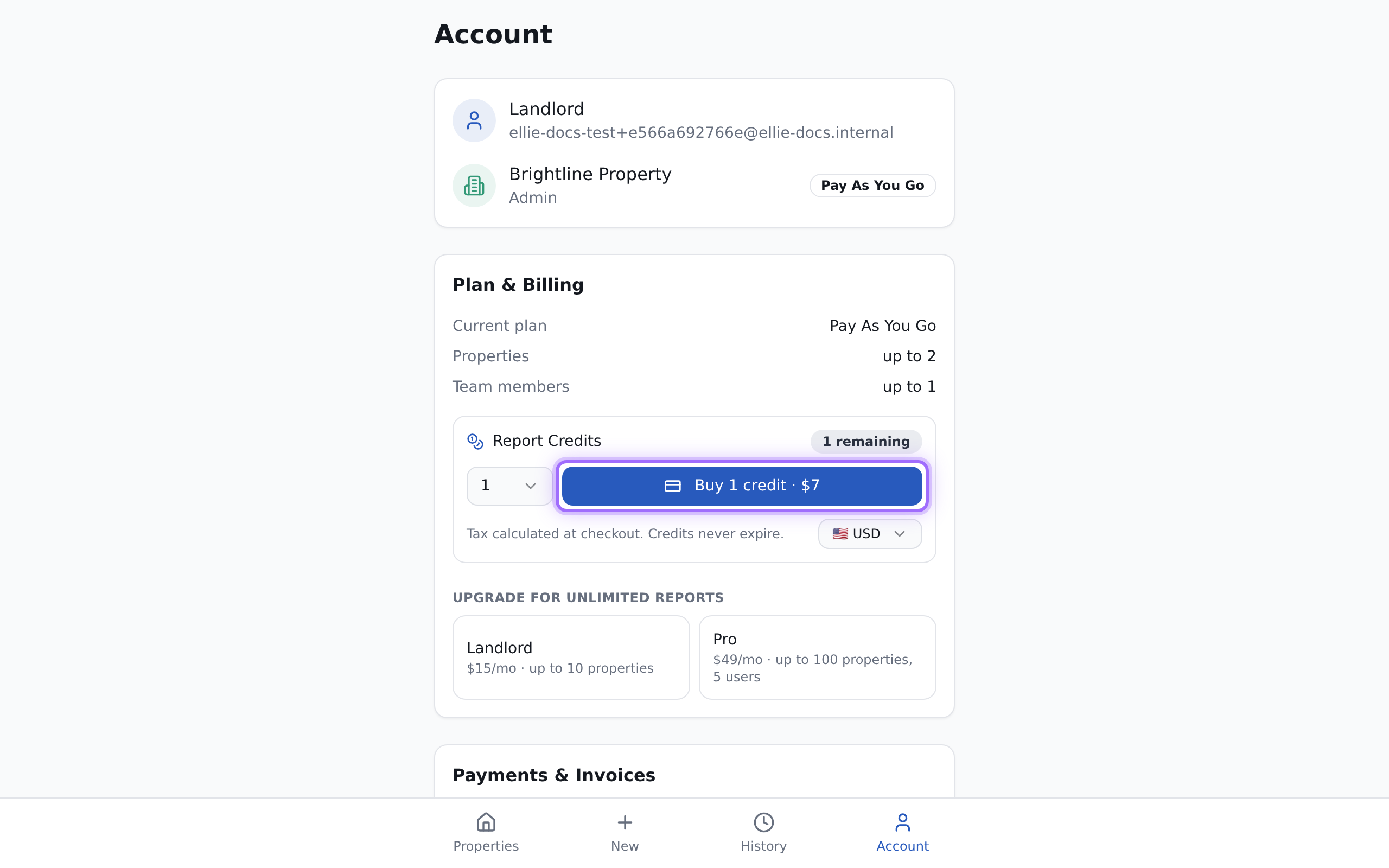
- To buy report credits, in Plan & Billing:
- Check Report Credits to see how many you have remaining.
- Choose a currency.
- Choose how many credits to buy: 1, 2, 3, 5, or 10.
- Select the Buy ... credit(s) button to go to checkout.
- After a successful purchase or upgrade, return to Account.
- If your plan upgrade completed successfully, you'll see Subscription activated!
- If your credit purchase completed successfully, you'll see Credits purchased!
- To review payment history, use the payments section in Account.
- If there are no payment records yet, purchases and invoices have not been added to the list yet.
- To create an inspection template, open the template form, enter a template name, add at least one room, and save it.
- You must enter a template name.
- You must add at least one room or the save will be blocked.
- To remove a template you no longer need, delete it from the templates list.
- To leave your account, select Sign out.

Good to know
Report credits never expire, and tax is calculated at checkout.