
Create a new inspection for a property, then open it to add rooms and update the inspection as you work. You can also link some inspections to an earlier completed inspection when that option is available.
Step by step
- Open the property you want to inspect, then select New in the Inspections section.
- In the new inspection form, choose the property in Select a property if it is not already selected.
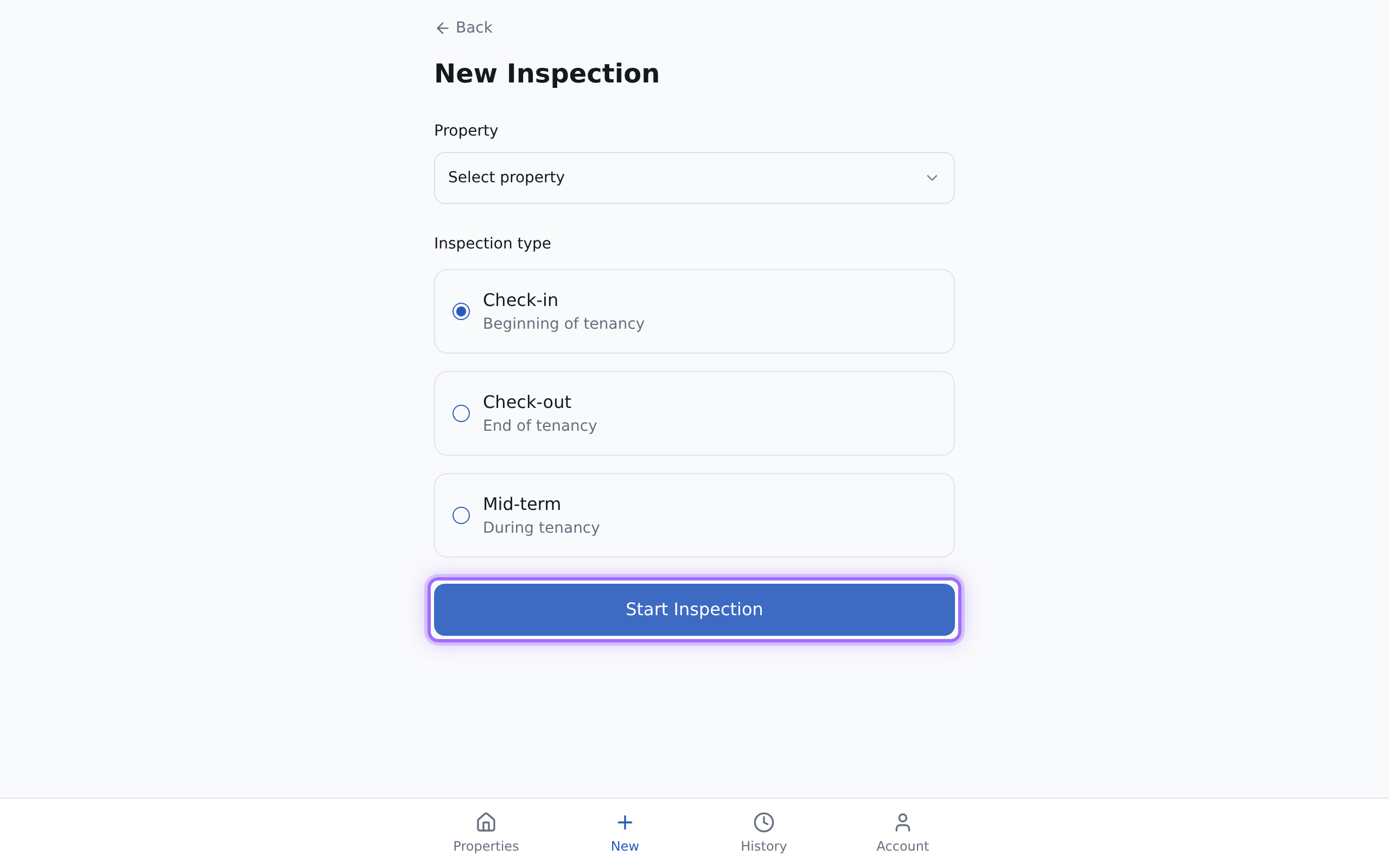
- Choose the inspection type you want to create:
- check-in
- check-out
- mid-term
- If you are creating a mid-term inspection and want the tenant to complete it, turn on Tenant-guided inspection.
- If you are creating a check-out or mid-term inspection, you can use Link to previous inspection:
- choose an earlier completed inspection to link it
- or choose Standalone (no linked inspection)
If you link a previous inspection, the rooms from that inspection are copied into the new one, and previous conditions are shown during the inspection for comparison.
- If you want to start with a room template, choose one in Room template (optional). To build the inspection yourself, choose Start from scratch.
- Select Start Inspection.
- In the inspection, add rooms as needed. Use Add room, enter the room name, then save it.
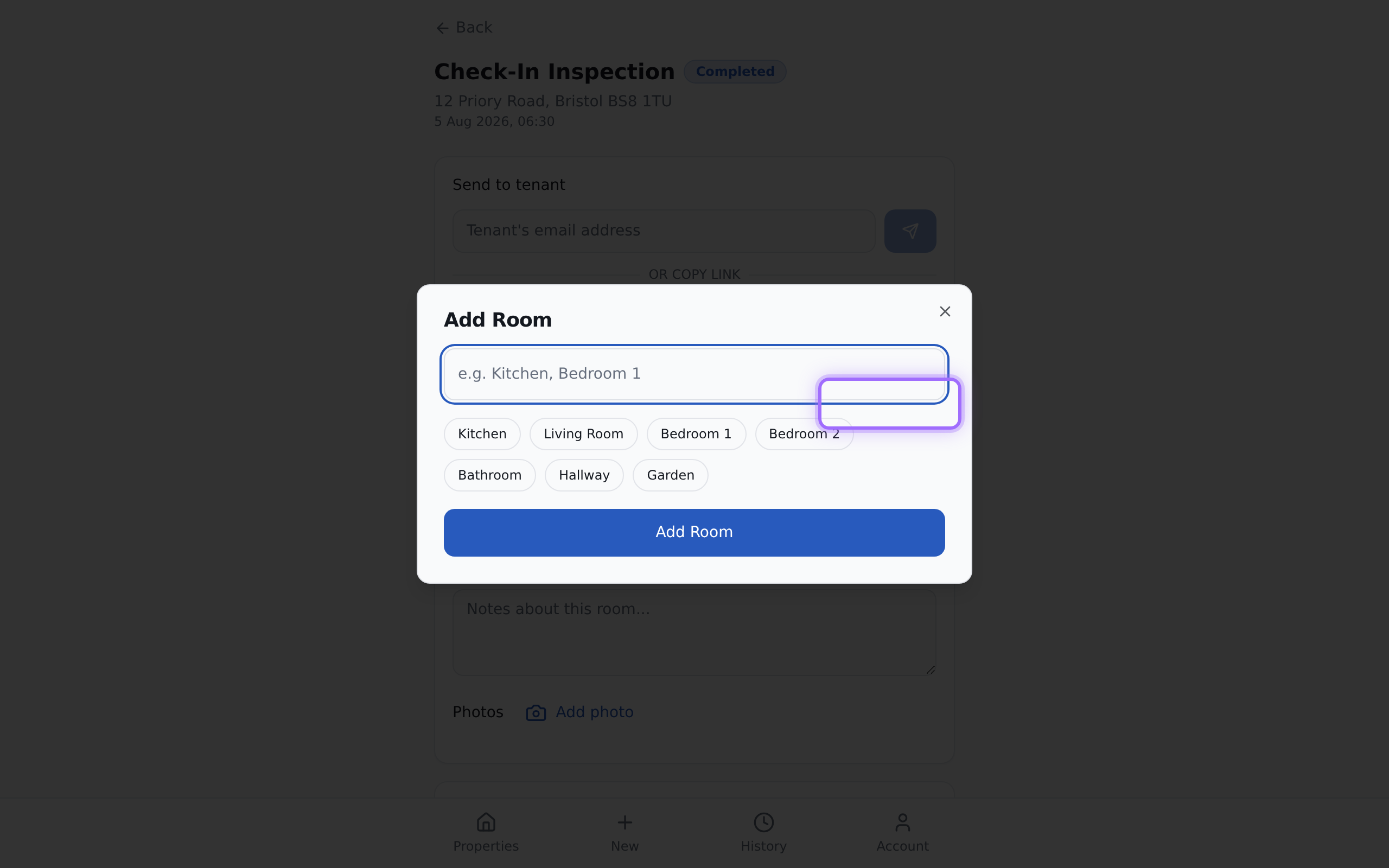
- Update each room as you work through the inspection. Changes you make in a room are saved as you edit.
- To remove a room you no longer need, use the room's Delete option.


Good to know
Deleting a property permanently deletes that property and all its inspections. This action cannot be undone.
- You must select a property before you can start an inspection.
- If your plan limit has been reached, you may be blocked from creating a new inspection. On the starter plan, you may be prompted to buy credits or view plans instead.