
Use the Dashboard to see how many properties you have, how many inspections were created this month, and how many inspections are still in the sign-off stage. You can also search your properties list and open a property to continue your work.

Step by step
- Open Properties from the app navigation to go to your Dashboard.
- Use the summary cards to decide what needs attention:
- Properties shows your total number of properties.
- This month shows inspections created since the start of the current month.
- Pending shows inspections that are still awaiting sign-off. This count includes inspections with the statuses completed and tenant_signed.
- If you want to find a property, use Search by address... to filter the list.
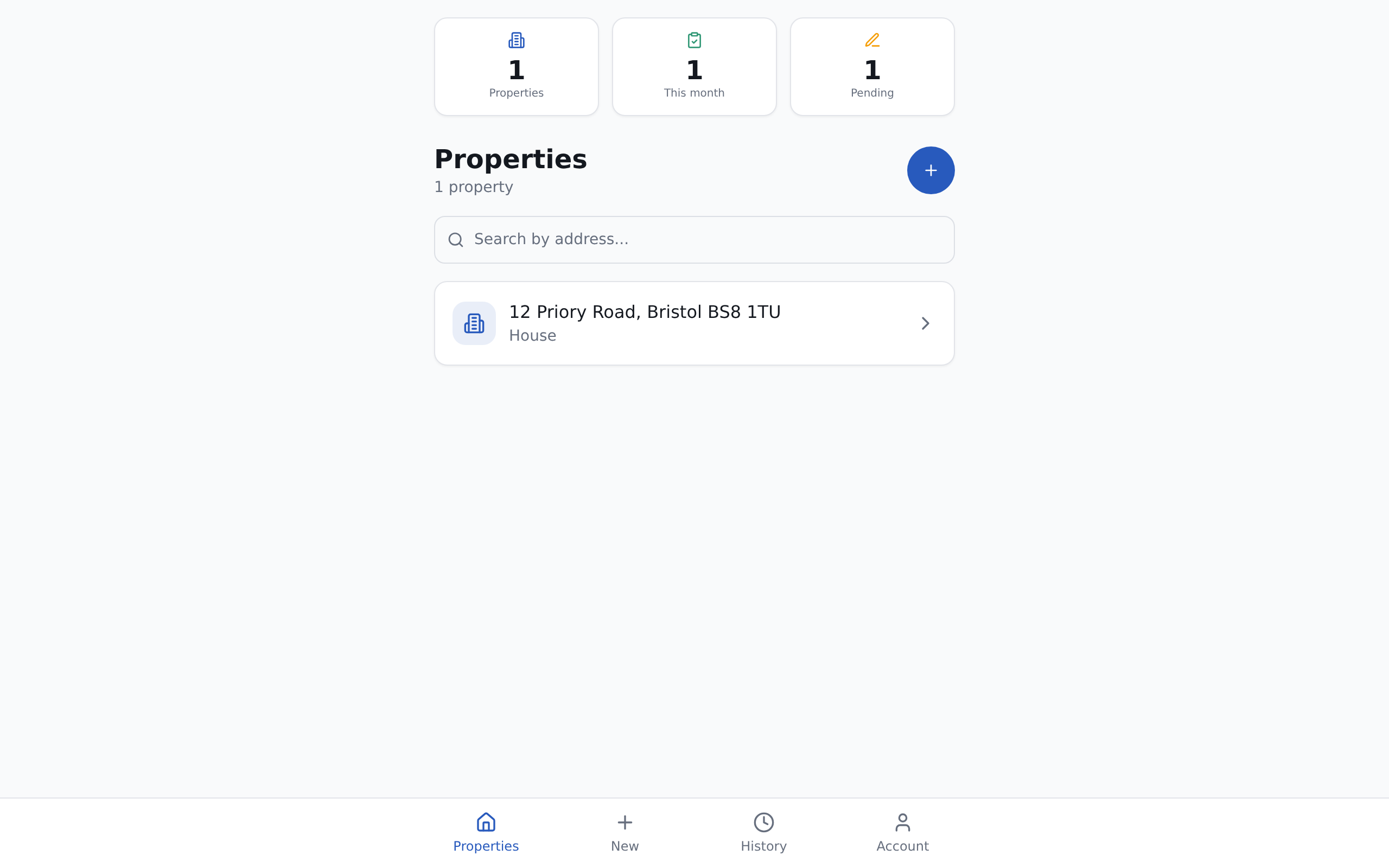
- Select a property from the list to open it.
- If you need to add a property, use the + button at the top of the Dashboard.
- If your search returns nothing, clear or change your search and try again. If you have not added any properties yet, use Add property from the empty state to create your first one.

Good to know
The property list is shown with newest properties first, so recently added properties appear at the top.
If the Pending count is higher than expected, those inspections are still awaiting final sign‑off — for example, they may have the completed or tenant_signed status but aren’t fully finished until sign‑off is complete.